Saturday, March 16, 2013

Oracle Team Productivity Center & Jira (part1)


Today we will talk about OTPC and Jira , just download Jira and install it .


 - Jira is ready now and we defined project called ADF_Project 


- Click on create issue


- Change issue type to Task 
- Add description to task 
- Scroll down and press create to create Task


- Now start WebLogic 
- Start Jdeveloper 
- Connect to OTPC (user : otpcadmin  pass:welcome1)


- Choose Team Adminstrtion


- Go to Repositories tab ==>> work item 
- Click green button to add new repository

        
 - Try to change connector List,oppps there is no Jira connector 
    we need to Add it now 


To install Jira connector  :
- run installer of OPTC as described before how-to-install-oracle-team-productivity


- Choose Connectors only 


- Enter user name and password for DB user  (otpc1/otpc) 
- Test connection


- Choose WebLogic for Application Server Type
- Enter location of autoDeploy folder in Application Server


- Choose install from local file 
- Add location to Jira connector


- Press Install


Back to JDeveloper again
- Login as otpcadmin / welcome1 
- Go to Repositories tab
- Add new work item
- Choose Jira from connector list 
- Add name for repository, repository server ,  repository url 


- Go to Teams tab , Team Repositories, 
- Check Jira Repository to add it to DevTeam


- Log out from OTPC 
- Log in again as normal user like wael/wael


Notice :Jira Repository under Work Items Menu

- Double click on Jira Repository
- The following error message will be shown
- Click on Yes Button

- Enter user name and password for Jira user 
   (you need to add wael in Jira user)
- Test Connection


- Jira Repository is ready now


good luck

Friday, March 15, 2013

How to install Oracle Team Productivity Center (part 2)


In previous post   How to install Oracle Team Productivity Center (part 1)    , we finished from installing the server and now let's go to installing client and adding the connectors to JDeveloper 

- In JDeveloper From help menu ==>> check for update


- You can choose any one of connectors  you like to install it
  let say Jira Connector


 - Finish
 

- JDeveloper will ask you to restart ,
- Press yes


- Its the time to start up Web Logic server


- In JDeveloper  Go to view menu  ==>> Team ==>>  Team Navigator


-Enter user name , password 


- Click on Team Administration


-Here we can define the users and their information


- And define the teams


Note : we can add repository like ( Jira - Task- MSProject )  under Work Item node , i will explain how to do that in next post .
also we can define name for connection of our source control (SubVersion - CVS) under Versioning node


-The last tab used to manage roles


good luck

Wednesday, March 13, 2013

How to install Oracle Team Productivity Center (part 1)


First step :  create DB user to act as repository for Oracle Team Productivity Center (OTPC) schema 


Next , set JAVA_HOME


- Add location of JDK to path system variable 


Download server from oracle website 


- Open command prompt
- Go to folder which contain OPTC server 
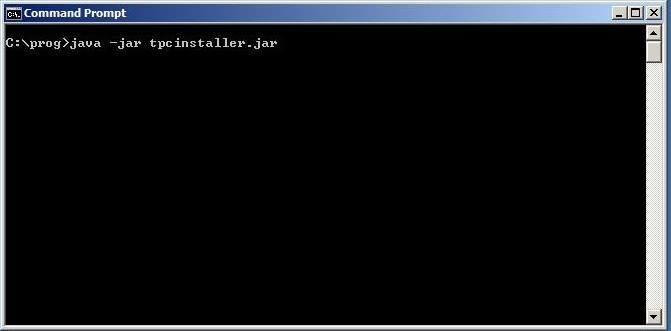
- Type :  java  -jar  tpcinstaller.jar  in command prompt


 Welcome page will appear


- Check Team Productivity Center Server and Connectors


- Enter the user name that you define in first step 
   in our case optc1 / optc1   
- Test connection


 Enter user name and password for admin account


 - Select your application server type
   for Web Logic case the application server location will be
   middleware home\user_projects\domains\base_domain\autodeploy


     Note : you can install connector (ex:Jira Connector-MsProject)
     and add another one later 
    - Download your favorite connector from oracle website


     - You can search online for connector or install it from local file


    - Review and summary


In the next post i will describe how to use Oracle Team Productivity Center with JDeveloper


good luck